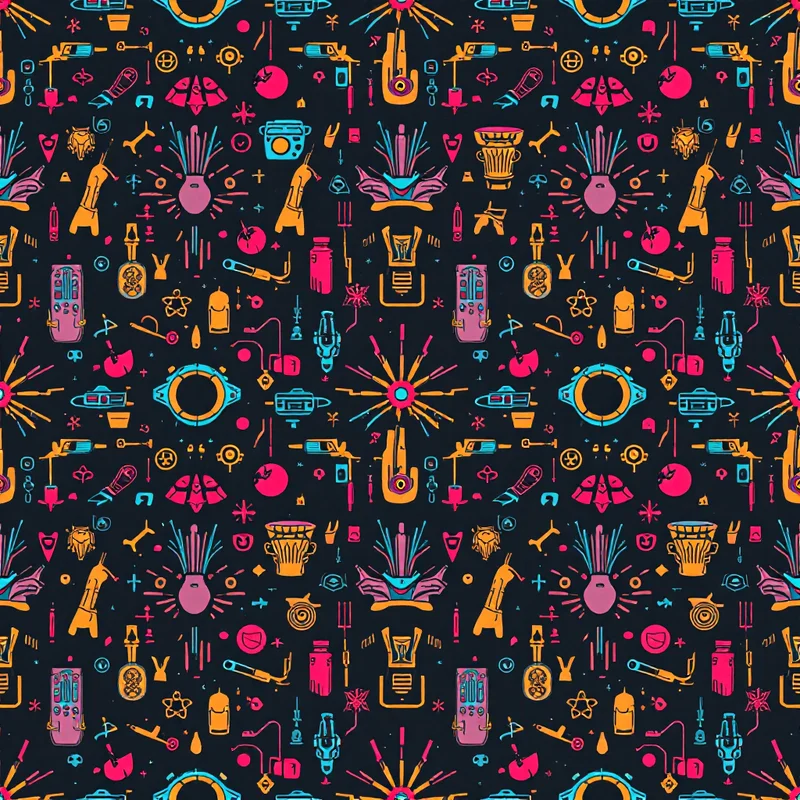
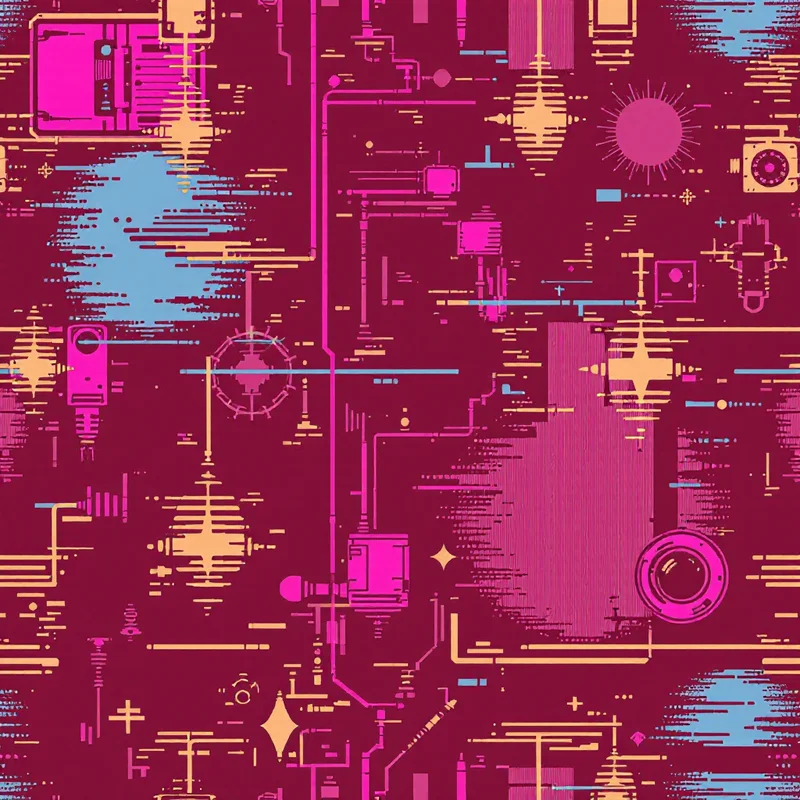
Perler beads -- those small, colorful plastic cylinders you arrange on pegboards and fuse with an iron -- have evolved well beyond a children's craft. Adult makers use them for detailed pixel art portraits, retro game sprites, coasters, jewelry, and wall art. The challenge is always the same: translating an idea into a grid of individual colored dots, where every bead must be deliberately placed and the final palette must match colors that actually exist in bead form.
Key takeaway: A perler bead pegboard is literally a physical pixel grid -- generate patterns at your exact pegboard dimensions (e.g., 29x29) using pixel-art rendering with 4-8 colors, and each pixel maps directly to one bead placement.
AI pattern generation changes this workflow significantly. Instead of manually plotting each bead on graph paper or squinting at a pixelation filter in Photoshop, you can generate structured, grid-friendly pattern designs and adapt them for pegboard layouts.
Why Perler Bead Patterns Are Essentially Pixel Art
A perler bead pegboard is a physical pixel grid. Each peg holds one bead, and each bead is a single solid color. A standard square pegboard is 29 by 29 pegs. Larger interlocking boards can reach hundreds of pegs per side, but the principle stays the same: your design is a mosaic of discrete colored units arranged in a rectangular grid.
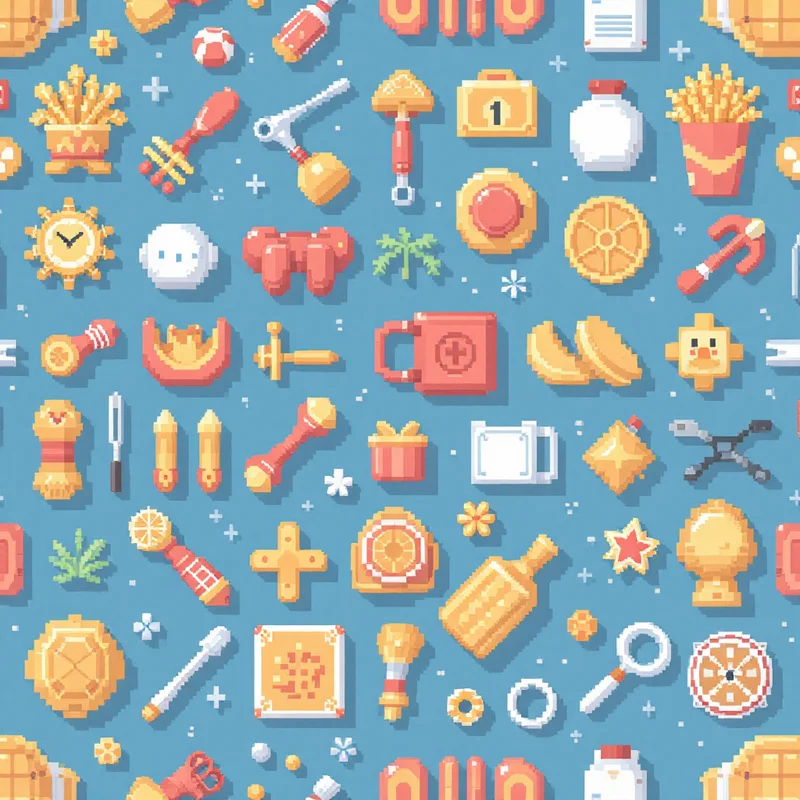
This is exactly what pixel art is -- images built from individual colored squares on a grid. Any tool that generates clean pixel-art-style patterns can, with some adaptation, produce designs suitable for perler beads. The key is working at the right resolution and constraining the color palette.
Using AI to Generate Bead-Ready Patterns
When generating patterns intended for perler beads, a few settings matter more than others.
Render Style
Look for pixel art, mosaic, or grid-based render modes. These produce output where individual units of color are clearly defined rather than blended. A pixel art render gives you crisp, single-color cells. A mosaic render produces a similar effect with slightly more organic edges but still reads as a grid of discrete tiles. Both translate directly to bead placement.
In the studio, selecting geometric styles with pixel art or mosaic rendering produces output that maps cleanly to pegboard grids. The resulting patterns have clear boundaries between color regions, which is exactly what you need when each "pixel" will become a physical bead.
Color Count
Perler bead brands (Perler, Hama, Artkal) offer large color ranges -- Perler has about 70 standard colors -- but working with too many similar shades creates sorting headaches and visual confusion on the pegboard. Aim for designs with 4 to 8 distinct colors. This keeps the pattern readable and the bead sorting manageable.
When generating your pattern, use a limited color palette. Choose colors that correspond to actual bead colors you own or can purchase. After generation, you will likely need to map each color in the digital pattern to its closest bead equivalent, but starting with a constrained palette minimizes that mapping work.
Scale and Density
For perler bead work, pattern density matters because it determines how many beads you will actually need and how complex the placement becomes. A sparse pattern with lots of background space is faster to assemble but may look empty on the pegboard. A dense, detailed pattern looks impressive but requires more beads and more patience.
Consider your pegboard size when choosing scale. A design intended for a single 29x29 board needs to work at low resolution. A large interlocking board project can accommodate more detail. Generate at a scale that matches your physical workspace.
From Digital Pattern to Pegboard
Once you have a generated pattern you like, the translation process involves a few practical steps.
Grid Overlay
Overlay a grid on your exported pattern image so each cell represents one bead. Many free tools (Bead Studio, BeadTool, or even spreadsheet software) let you import an image and convert it to a bead-by-bead grid. The grid overlay shows you exactly which color goes on which peg.
Color Mapping
This is where the craft-specific work happens. Digital colors rarely match bead colors exactly. Open your gridded pattern and replace each digital color with the closest available bead color. Most dedicated perler bead software includes the official Perler, Hama, or Artkal color palettes for automated matching. If you are doing this manually, hold a physical bead next to your screen for each color to find the best match.
Pay attention to contrast. Two colors that look different on screen might be nearly indistinguishable as beads. If your pattern relies on subtle gradients, simplify them into fewer, more distinct steps.
Bead Count
Before you start placing beads, count how many of each color you need. Grid software can generate a bill of materials automatically. There is nothing worse than running out of a specific color two-thirds through a project and discovering it is out of stock.
Pattern Types That Work Well for Perler Beads
Not every pattern style translates well to the pegboard. These categories produce consistently good results.
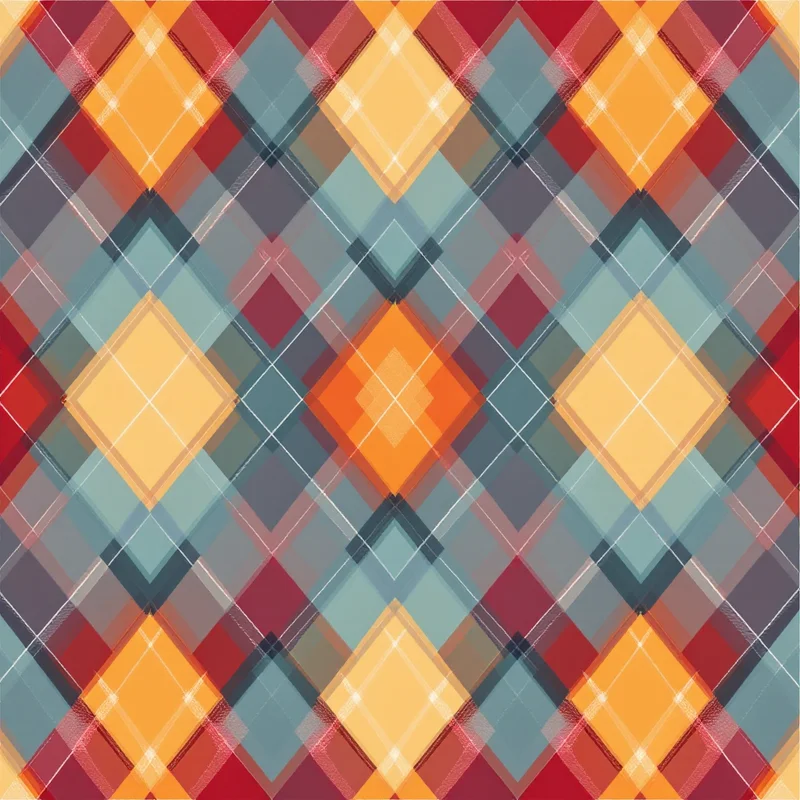
Geometric patterns are natural fits. Diamonds, chevrons, Greek key borders, and tessellations are built from straight lines and right angles, which is exactly what a square grid offers. They also tend to use few colors and have strong visual impact even at low resolution.
Retro and 8-bit styles were literally designed for pixel grids. Game sprites, retro typography, and classic arcade aesthetics look right at home on a pegboard because the medium matches the original format.
Simple botanical and nature motifs work when they are stylized rather than realistic. A pixel-art flower, leaf, or mushroom can look charming. A photorealistic rose will not survive the translation to a 29x29 grid.
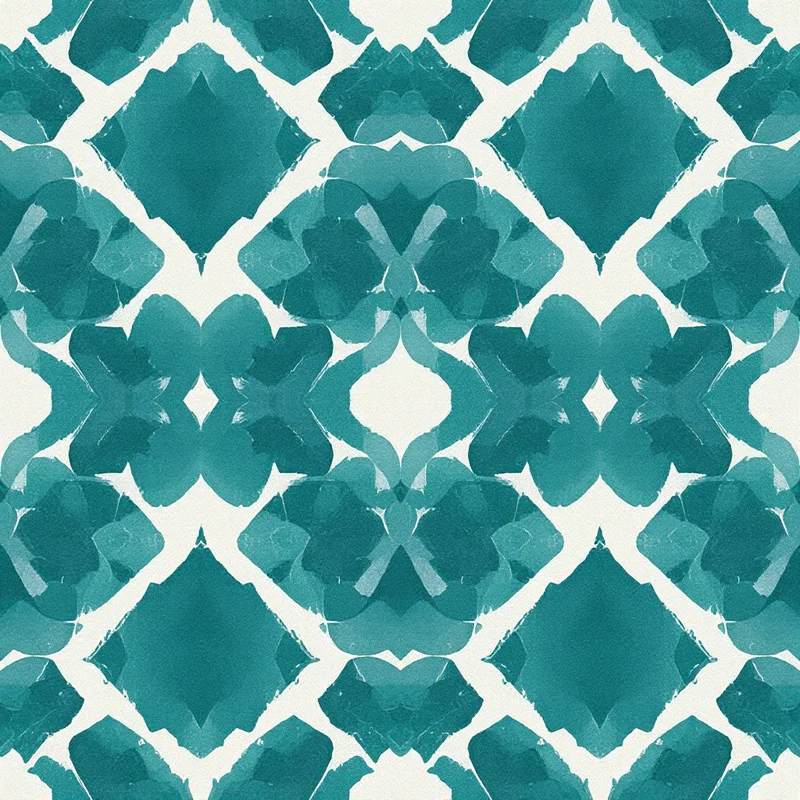
Repeat patterns for coasters and trays are especially practical. A small seamless tile -- say 15x15 beads -- can be repeated across a larger board to create a unified surface. Seamless patterns generated by AI are ideal for this because the edges already match perfectly.
Tips for Better Results
Start small. Your first project should be a single standard pegboard, not a six-board mural. This lets you learn how colors translate, how density feels in practice, and how long assembly actually takes.
Test your color mapping with a small section before committing to the full design. Fuse a 5x5 corner piece and evaluate whether the colors work together physically, not just on screen.
Use a lightbox or well-lit workspace. Sorting and placing beads in poor lighting leads to color mistakes that you will not notice until the piece is fused and permanent.
Save your generated patterns at the highest resolution available. You can always downscale a detailed image to a lower bead count, but you cannot add detail to a low-resolution source.
Combining AI Generation with Manual Editing
The strongest workflow uses AI generation as a starting point and manual editing as a finishing step. Generate a pattern that captures the style, color mood, and overall composition you want. Then open it in bead-specific software and adjust individual bead placements -- smoothing curves, fixing color transitions, and adding or removing detail where the grid demands it.
This hybrid approach gives you the speed of AI exploration with the precision of hand-placed bead work. You can generate dozens of variations in minutes, pick the strongest direction, and then invest your manual effort only in the design that earned it.
Explore geometric and pixel-art pattern styles in the studio to start generating designs ready for your next perler bead project.
Explore related pattern styles
Patterns for