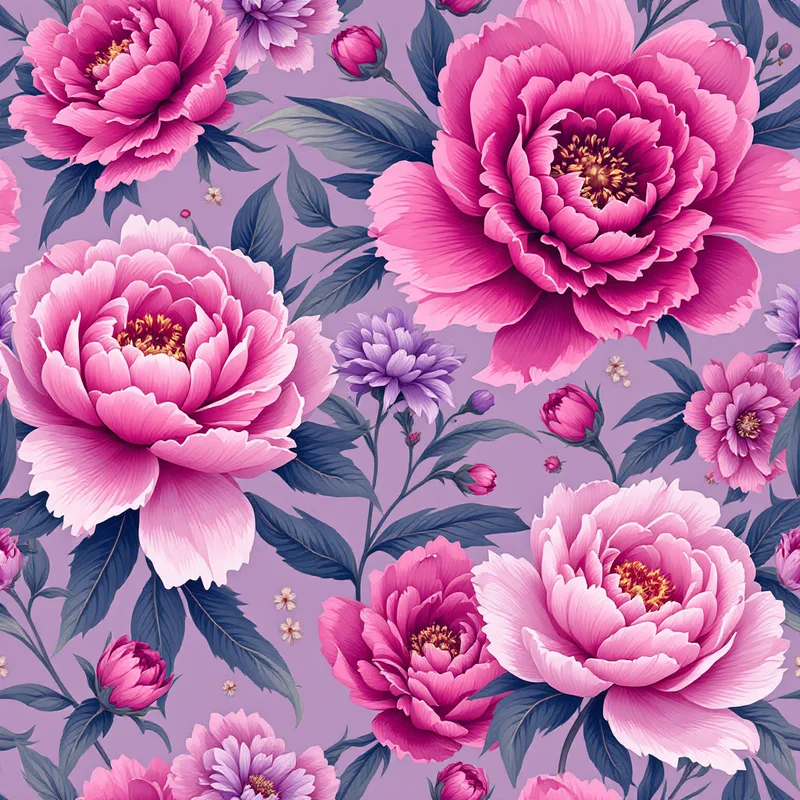
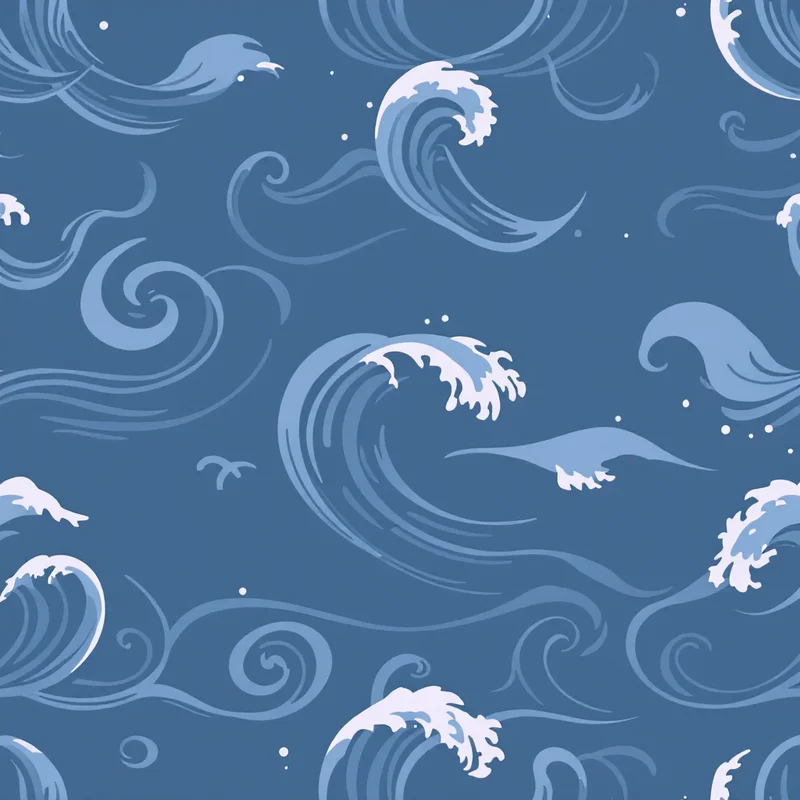
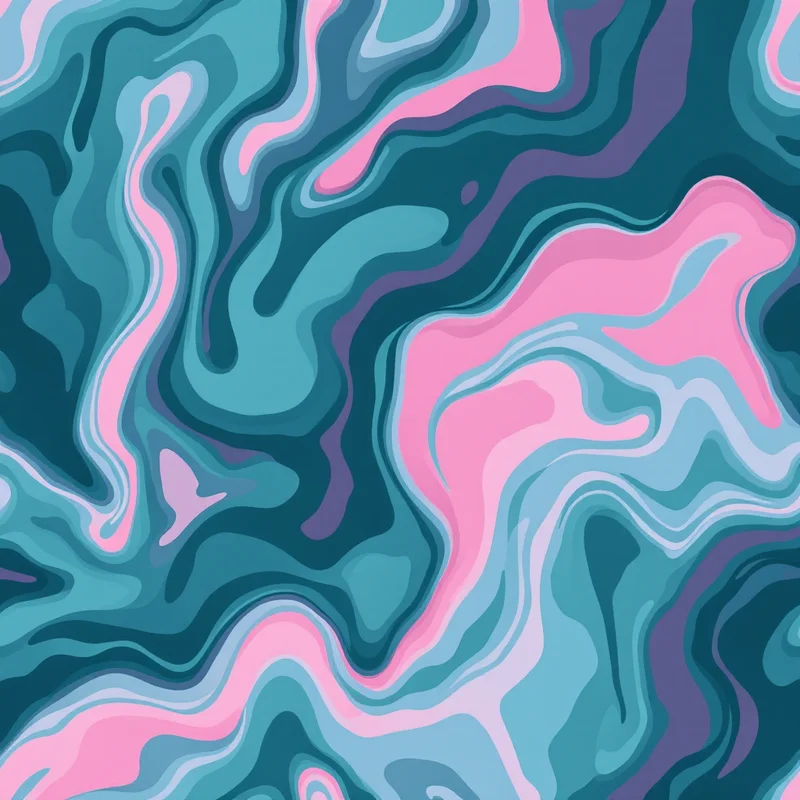
Procreate is one of the most popular digital illustration apps on iPad, and it handles seamless patterns surprisingly well once you know where to put them. Whether you have generated a pattern tile in the studio, designed one in Illustrator, or found one in a resource pack, there are several ways to bring repeating patterns into your Procreate workflow. Each method serves a different purpose — background fills, custom brushes, texture overlays, and design mockups all use different import paths.
TL;DR: The most versatile method is creating a custom pattern brush (Method 2) -- import your tile as the brush shape, set the grain to "Rolling," and adjust spacing until tiles meet seamlessly. Once saved, you can paint pattern fills anywhere, mask them to shapes, and reuse them across projects.
This guide covers all of them.
Exporting Your Pattern Tile
Before importing into Procreate, you need a clean pattern tile — a single rectangular image designed so that its edges match perfectly when tiled. If you are generating patterns in the studio, export the tile at the highest resolution available. PNG format is ideal because it preserves sharp edges and supports transparency. JPEG works for photographic or painterly textures but introduces compression artifacts that can show at tile seams.
For Procreate use, export at a minimum of 1000x1000 pixels. Larger is better if you plan to use the pattern at large scale — 2048x2048 or 4096x4096 gives you more flexibility. Save the file to your iPad's Files app, Photos library, or AirDrop it directly from your computer.
Method 1: Pattern Fill Using the Clone Tool
Procreate does not have a dedicated pattern fill feature like Photoshop, but the Clone tool achieves the same result with a small workaround.
- 1Create a new canvas at least 3x the size of your pattern tile in each dimension.
- 2Import your pattern tile as a new layer using the wrench icon (Actions > Add > Insert a photo).
- 3Position the tile in the upper-left corner of the canvas.
- 4Duplicate the tile layer and arrange copies edge-to-edge to fill the canvas. Use Snapping (in the Transform tool) to align tiles precisely. You need enough copies to cover the area you want to fill.
- 5Merge all tile layers into one.
- 6Select the Clone tool from the brush library, set the source point on your tiled layer, and paint on a new layer. The pattern will follow your brush.
This method is manual but gives you full control over where the pattern appears and at what opacity.
Method 2: Creating a Custom Pattern Brush
This is the most powerful method and the one most professional Procreate artists use. A pattern brush stamps your tile repeatedly as you paint, creating seamless coverage in any shape.
- 1Open the Brush Library and tap the + icon to create a new brush.
- 2In the Shape section, tap Shape Source and import your pattern tile image. This defines what each "stamp" of the brush looks like.
- 3In the Grain section, you can optionally import the same or a different texture. For a simple pattern fill brush, the Shape source is what matters.
- 4Under Stroke, set Spacing to the value that makes your tiles meet edge-to-edge without gaps or overlap. This usually requires some testing — start around 30-40% and adjust. Set StreamLine to zero.
- 5Under Properties, set the brush behavior to your preference. For a fill brush, you typically want no taper, no pressure variation, and consistent opacity.
- 6For tiling behavior, go to Grain properties and set the grain to "Rolling" so the pattern tiles continuously as you paint rather than stretching.
Test the brush by painting a long stroke across a canvas. If the pattern tiles seamlessly, you have it right. If you see seams, adjust the spacing or check that your source tile truly repeats.
Once saved, this brush lives in your library permanently. You can paint pattern fills freehand, mask them to shapes, or use them at varying opacities for texture effects.
Method 3: Reference Layer for Drawing Over Patterns
If you want to use a pattern as a structural guide rather than final artwork — for example, drawing over a plaid to design a garment or sketching motifs that align with a geometric grid — Procreate's Reference Layer feature works well.
- 1Import your tiled pattern as a layer (arrange copies to cover your canvas as in Method 1).
- 2Tap the layer, select "Reference" from the layer menu.
- 3Create a new layer above it for your drawing work.
- 4The pattern layer now acts as a visual guide. ColorDrop will use it for fill boundaries, which is useful for filling in regions of a geometric pattern with different colors.
Reduce the opacity of the reference layer to 20-30% so it guides without overpowering your drawing.
Method 4: Pattern Texture Overlays
Seamless patterns make excellent texture overlays for illustrations, lettering, and digital paintings. This method layers a tiled pattern over your existing artwork using blend modes.
- 1Finish your illustration or lettering on its own layers.
- 2Import and tile your pattern on a layer above the artwork (or use a pattern brush to fill).
- 3Set the pattern layer's blend mode to Multiply (for adding dark texture to light areas), Screen (for adding light texture to dark areas), or Overlay (for general texture that affects both lights and darks).
- 4Adjust the pattern layer's opacity — usually 10-30% for subtle texture, 40-60% for a more pronounced effect.
- 5If you want the pattern texture only inside your artwork (not on the background), create a clipping mask by tapping the pattern layer and selecting "Clipping Mask." The pattern will clip to the content of the layer below.
This technique is popular for adding fabric texture to fashion illustrations, paper grain to lettering, or geometric overlays to poster designs.
Method 5: Fabric and Product Mockups
Surface pattern designers frequently need to show clients how a pattern will look on a finished product — a cushion, a dress, a roll of wallpaper. Procreate can handle basic mockups using the Transform tool's warp capabilities.
- 1Find or photograph a blank product image (a white t-shirt, a plain cushion, a flat fabric swatch).
- 2Import it as a layer in Procreate.
- 3On a layer above, import and tile your pattern to cover the product area.
- 4Use Transform > Warp to bend the pattern layer so it follows the contours of the product — the curve of a cushion, the drape of fabric, the folds of a shirt.
- 5Set the pattern layer to Multiply blend mode so the product's shadows show through the pattern.
- 6Erase any pattern that extends beyond the product edges, or use a layer mask.
The result is not as polished as a dedicated mockup template, but it is fast and entirely self-contained within Procreate.
Resolution and File Size Considerations
Procreate canvases have a maximum layer count that decreases as canvas resolution increases. A 4096x4096 canvas on an iPad Pro might allow 40-60 layers, while an 8192x8192 canvas might allow only 10-15. If your pattern workflow requires many layers (multiple pattern variations, blend mode experiments, clipping groups), work at a moderate resolution and upscale the final output.
Pattern tile resolution also matters for print work. Screen-only projects (social media, web graphics) are fine with 150 DPI tiles. Fabric printing and physical product mockups need 300 DPI at the final print size. If your pattern tile is 1000x1000 pixels at 300 DPI, it covers roughly 3.3 inches — fine for a small motif but you may need to scale up for larger applications.
When exporting from the studio for Procreate use, the standard high-resolution export produces tiles large enough for most Procreate workflows. For print-quality work, use the enhanced upscale option before exporting to ensure you have sufficient resolution for tiling at large scale.
Quick Reference
| Use Case | Method | Best For |
|---|---|---|
| Background fills | Clone tool or pattern brush | Illustrations, posters |
| Freeform painting | Custom pattern brush | Artistic fills, hand-drawn effects |
| Drawing guide | Reference layer | Garment design, geometric layouts |
| Texture overlay | Blend mode layering | Lettering, digital painting |
| Client presentations | Warp mockup | Product visualization |
The combination of a seamless pattern generator and Procreate covers an enormous range of creative work. Generate the tile, import it, and apply it using whichever method fits your project. The pattern does the heavy lifting; Procreate gives you the flexibility to use it anywhere.
Explore related pattern styles